Setup Client in Development Environment
Connect a runner to your Tool Forge development environment.
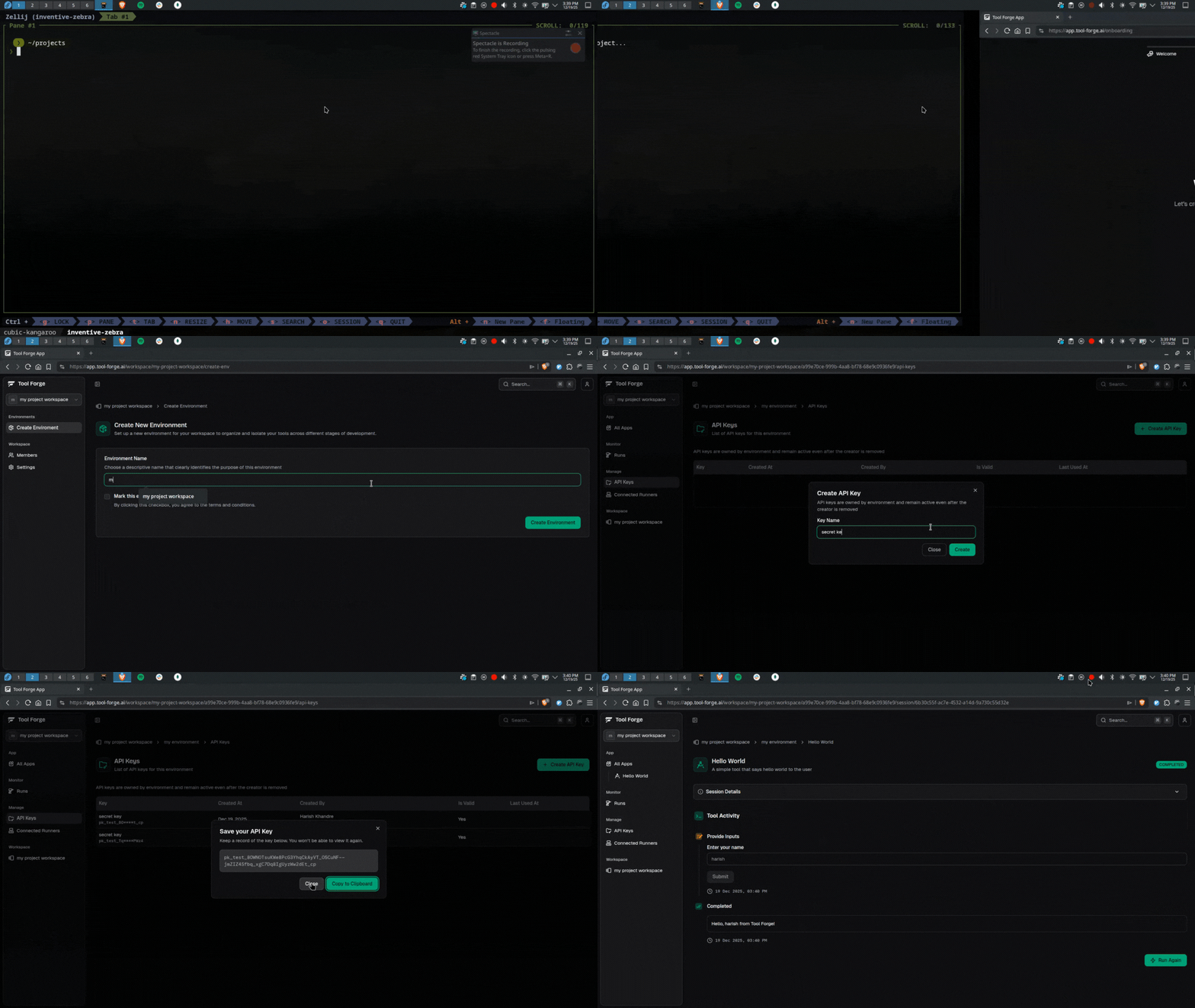
This guide shows you how to connect your Tool Forge project to your development environment. If you haven't created a project yet, follow one of these guides first:
- Quick Start - Create a project using
create-toolforge - Build from Scratch - Set up a project manually
Step 1: Generate an API Key
- Open the Tool Forge dashboard
- Navigate to your workspace
- Select your development environment
- Go to Settings → API Keys
- Click Generate New Key
- Copy the generated API key (starts with
pk_testfor development)
Keep Your API Key Secret
Never share your API key or commit it to version control.
Step 2: Configure Your Environment
Create a .env file in your project root (if it doesn't exist):
TOOL_FORGE_API_KEY=pk_test_your_api_key_hereMake sure .env is listed in your .gitignore:
.envStep 3: Start the Runner
Run the development server:
bun run devOr using the CLI directly:
bunx --bun toolforge devYou should see output indicating successful connection:
[18:34:13.610] INFO (524140): connecting to SDK server at https://sdk.tool-forge.ai/socket?apiKey=pk_test_L5e-*********&runnerId=tf-runner%3Al52IokFrZDvoPUv3lWwoKXSfn9k6zsKq
    id: "tf-runner:l52IokFrZDvoPUv3lWwoKXSfn9k6zsKq"
    component: "WebSocketClient"
[18:34:13.611] INFO (524140): created tool runner
    id: "tf-runner:l52IokFrZDvoPUv3lWwoKXSfn9k6zsKq"
    mode: "development"
[18:34:13.615] INFO (524140): connected to SDK server
    id: "tf-runner:l52IokFrZDvoPUv3lWwoKXSfn9k6zsKq"
    component: "WebSocketClient"
[18:34:13.881] INFO (524140): websocket communication initialized, sending forge list...
    id: "tf-runner:l52IokFrZDvoPUv3lWwoKXSfn9k6zsKq"
[18:34:13.885] INFO (524140): connected to SDK server, starting heartbeat...
    id: "tf-runner:l52IokFrZDvoPUv3lWwoKXSfn9k6zsKq"
    component: "WebSocketClient"
[18:34:13.885] INFO (524140): websocket communication initialized, sending forge list...
    id: "tf-runner:l52IokFrZDvoPUv3lWwoKXSfn9k6zsKq"
Step 4: Verify in Dashboard
- Go back to the Tool Forge dashboard
- Navigate to your development environment
- Your tools should now appear in the list
The runner automatically discovers all tools in your tools/ directory and
registers them with Tool Forge.
Troubleshooting
"No connected runners" message
- Ensure your runner is still running in the terminal
- Verify your API key is correct in the
.envfile - Check that the API key belongs to the correct environment
Tools not appearing
- Ensure your tool files export a default
defineTool()ordefineAgent() - Check for TypeScript/syntax errors in your tool files
- Restart the runner with
bun run dev
Connection issues
The runner automatically reconnects if disconnected. If issues persist:
- Check your internet connection
- Verify no firewall is blocking outbound connections
- Try regenerating your API key
Next Steps
- IO Primitives - Learn about input methods
- Block Outputs - Create rich visualizations
- Examples - See complete tool examples