Quick Start
Get up and running with Tool Forge in just a few minutes.
This guide will help you create your first Tool Forge project and run it locally in under 5 minutes.
Prerequisites
Install Bun
Tool Forge requires the Bun runtime. It does not work with Node.js. Bun is also the recommended package manager for Tool Forge projects.
If you don't have Bun installed, install it using one of the following methods:
bash curl -fsSL https://bun.sh/install | bash
powershell powershell -c "irm bun.sh/install.ps1 | iex"
Verify the installation:
bun --versionYou should see a version number like 1.0.0 or higher.
Get Your API Key
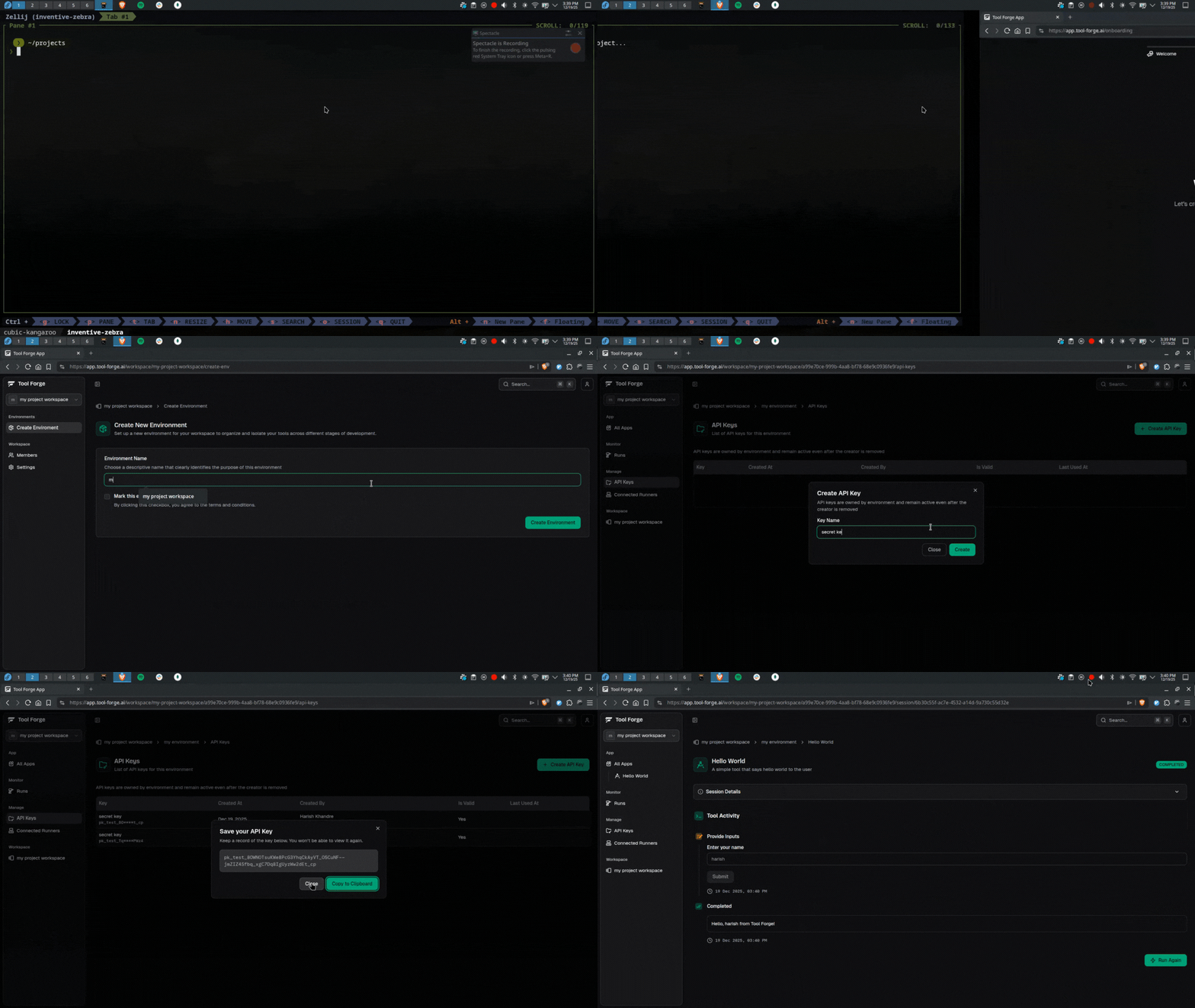
- Sign in to your Tool Forge dashboard
- Create a new workspace or select an existing one
- Create an environment or select an existing one
- Navigate to API Keys and generate a new key
- Copy the API key
For detailed instructions, see Managing API Keys.
API keys starting with pk_test_ are for development/testing environments,
while sk_live_ keys are for production. Learn more about environment
types.
Create Your Project
Run the create command
Use the create-toolforge CLI to scaffold a new project:
bunx --bun create-toolforge@latestThe CLI will guide you through the setup process with the following prompts:
Enter project name
◆ Project name
│ toolforge-project
Enter a name for your project. This will be used as the directory name. The default is toolforge-project.
Project names cannot contain spaces.
Enter API key (optional)
◆ API key (optional)
│ pk_test_... or sk_live_...
Paste your API key from the Tool Forge dashboard. You can skip this step and add it later to your .env file.
Choose tools directory
◆ Tools directory
│ tools
Specify where your tool files will be stored. The default is tools. This is where you'll create your Tool Forge tools.
You can also pass these options directly via command-line flags:
bunx --bun create-toolforge@latest \
  --name my-project \
  --api-key pk_test_xxxxx \
--tools-dir tools| Flag | Description |
|---|---|
-n, --name <name> | Project name (no spaces allowed) |
-k, --api-key <key> | Tool Forge API key (pk_test_... or sk_live_...) |
-t, --tools-dir <dir> | Directory for tool files (default: tools) |
Install Dependencies and Run
After the project is created, navigate to your project directory and install dependencies:
cd my-project
bun install
Start the development server:
bun devYour tools are now connected to Tool Forge! Open your Tool Forge dashboard to see them in action.
Project Structure
After setup, your project will look like this:
Your First Tool
The CLI creates a sample hello-world.ts tool to get you started:
// tools/hello-world.ts
import { defineTool } from '@toolforge-js/sdk/components'
import * as z from 'zod'

export default defineTool({
  name: 'Hello World',
  description: 'A simple tool that greets the user',
  handler: async ({ io }) => {
    const name = await io.textInput({
      label: 'Enter your name',
      validationSchema: z.string(),
    })

    return `Hello, ${name} from Tool Forge!`
  },
})
How It Works
defineTool()- Registers your tool with Tool Forgeio.textInput()- Prompts the user for input in the dashboard- Return value - Displayed as the tool's output
Any changes you make to your tools are hot-reloaded automatically. Edit the file, save it, and see your changes instantly in the dashboard.
Next Steps
Now that you have a working project, explore these resources:
- Tool Concepts - Deep dive into tool structure and capabilities
- Agent Concepts - Build multi-step workflows with context and branching
- Installation Guide - Deep dive into project configuration
- IO Reference - Learn about all available input primitives
- Text Input - Collect text from users
- Form Input - Build multi-field forms with validation
- Confirm Dialogs - Add human-in-the-loop confirmations